Archiving
Archiving settings allow you to control which teams can be archived and specify the actions to be performed during the archiving process.
Configure archiving actions
Where to start?
To configure archiving actions, navigate to Groups > Organisation > Template > Archiving
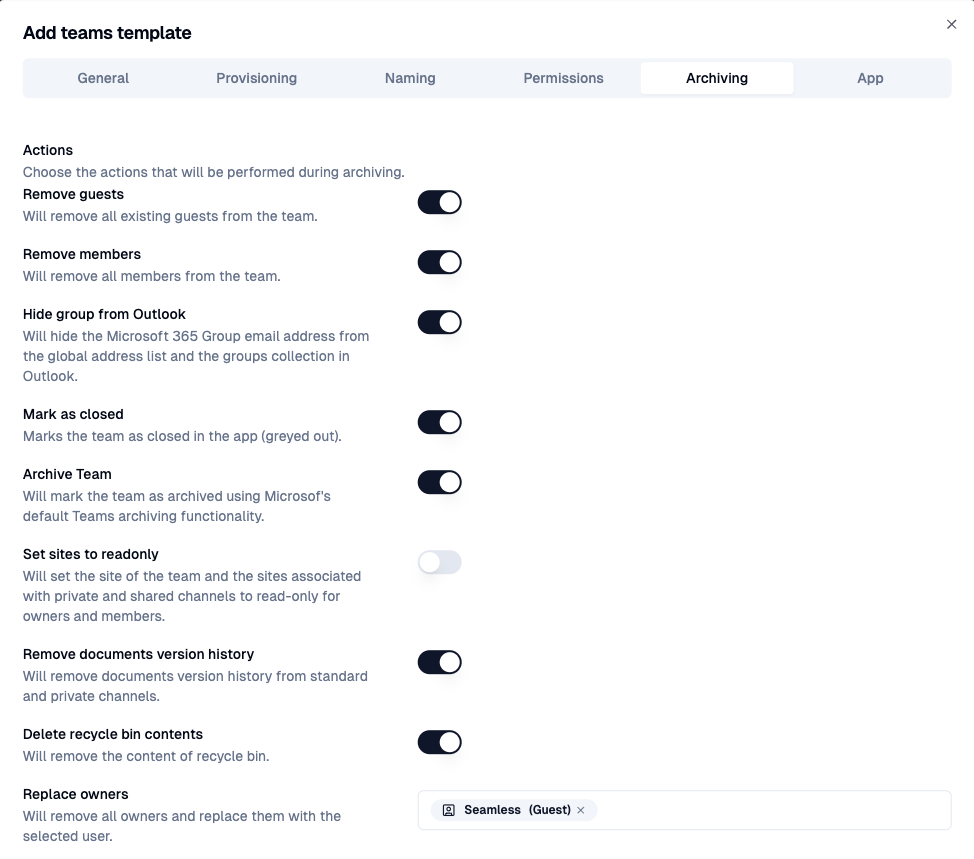
Choose archiving actions
Choose the actions that will be performed during archiving.
| Action | Description |
|---|---|
| Remove guests | Removes all guest accounts from the members group of the team. |
| Remove members | Removes all members from the members group of the team. |
| Hide group from Outlook | Will hide the Microsoft 365 Group email address from the global address list and the groups collection in Outlook. |
| Mark as closed | Sets the status to inactive. In Seamless, the team is grayed out. |
| Archive Team | Will archive the team using Microsoft’s default Teams archiving functionality. |
| Set site to read-only | Will set the team site and associated sites for private and shared channels to read-only for owners and members. |
| Remove documents version history | Removes old document versions and will free up your tenant storage. |
| Delete recycle bin contents | Will empty the recycle bin to free up tenant storage. |
| Replace owners | Will remove the owners and replace them with the configured account. |
Next → configure App settings