

Activate Seamless
AI translated from the German original
Activate Seamless in your Microsoft 365 tenant.
Sign in to the Admin Center
Section titled “Sign in to the Admin Center”-
Sign in at manage.seamlesswork.com with a user account that has the Global Administrator role.
The sign-up process then starts.
-
Use Grant permissions to grant Seamless the required permissions.
-
Use Assign admin role to add your user account to the Seamless admin role.
-
Seamless then sets up the initial configuration automatically.
Only the tenant ID is recorded in the Seamless database so that we know when the tenant was registered.
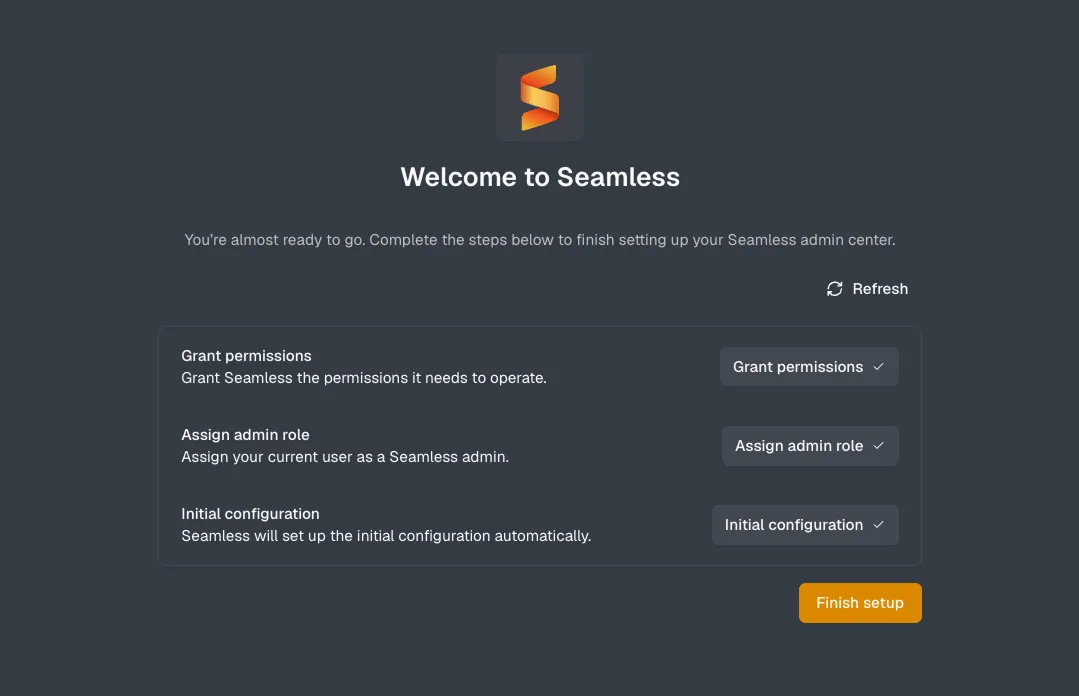
-
You will then be briefly signed out of the Admin Center. Sign in again at manage.seamlesswork.com.
Activation was successful if the dashboard in the Admin Center is displayed after you sign in.
Troubleshooting
Section titled “Troubleshooting”The permissions were not granted in Entra ID (consent)
Grant consent in Microsoft Entra ID:
- In the Microsoft Entra admin center, open Enterprise applications and select Seamless.
- Open Permissions.
- Click Grant admin consent.
Then check in the Seamless Admin Center under Settings → More → Consents whether the status All permissions granted is displayed.
The Seamless admin role is missing
Make sure that your user account has the Seamless Admin role in the Seamless application.
Assign the role in Microsoft Entra ID:
- In the Microsoft Entra admin center, open Enterprise applications and select Seamless.
- Select Users and groups.
- Click Add user/group.
- Assign the Seamless Admin role to your user account.
Then sign in to the Seamless Admin Center again. If the dashboard is displayed, the role was assigned successfully.
The account does not have the Global Administrator role
The sign-in dialog shows a message that admin approval is required. Sign in with a user account that has the Global Administrator role.
The role is assigned via PIM but not active
If you use Privileged Identity Management (PIM), make sure that the Global Administrator role is activated before you sign in to the Seamless Admin Center.
You are signed in with the wrong account
Sign in in a private browser window so that no other account is used. Use a user account from your tenant, not a guest account or a personal Microsoft account.
Conditional Access blocks the sign-in
In the Microsoft Entra admin center, check the sign-in logs to see which policy blocks the sign-in, and exclude Seamless from it.
The Seamless enterprise application is disabled
In the Microsoft Entra admin center, open the Seamless application under Enterprise applications. In the Properties, check that sign-in is enabled for users. If assignment is required, assign your user account to the application.
The sign-in gets stuck
Allow pop-ups and cookies for manage.seamlesswork.com and login.microsoftonline.com, or use a different browser.
If the problem persists, please book a free support appointment. We are happy to help you set up Seamless.