

First Teams template
AI translated from the German original
Quick start for creating new Microsoft Teams.
The creation, management and lifecycle of teams are controlled through templates. In this quick start, we configure a minimal template for creating new teams with Seamless. You can find the detailed guide under Set up organisations and templates.
Create an organisation
Section titled “Create an organisation”Templates are created individually for each organisation.
-
In the Seamless Admin Center, open Groups → Templates.
-
Click Add organisation.
-
Enter the name of the organisation and save.
The organisation is now created. You can now create templates in it.
Create a template
Section titled “Create a template”-
Open the organisation you created.
-
Under Templates, click Add template.
-
In the General tab, enter the name of the template.
-
In the Group tab, enable the Create team option.
New teams are created as public teams this way. For production, we recommend private teams, see Visibility.
-
Save the template.
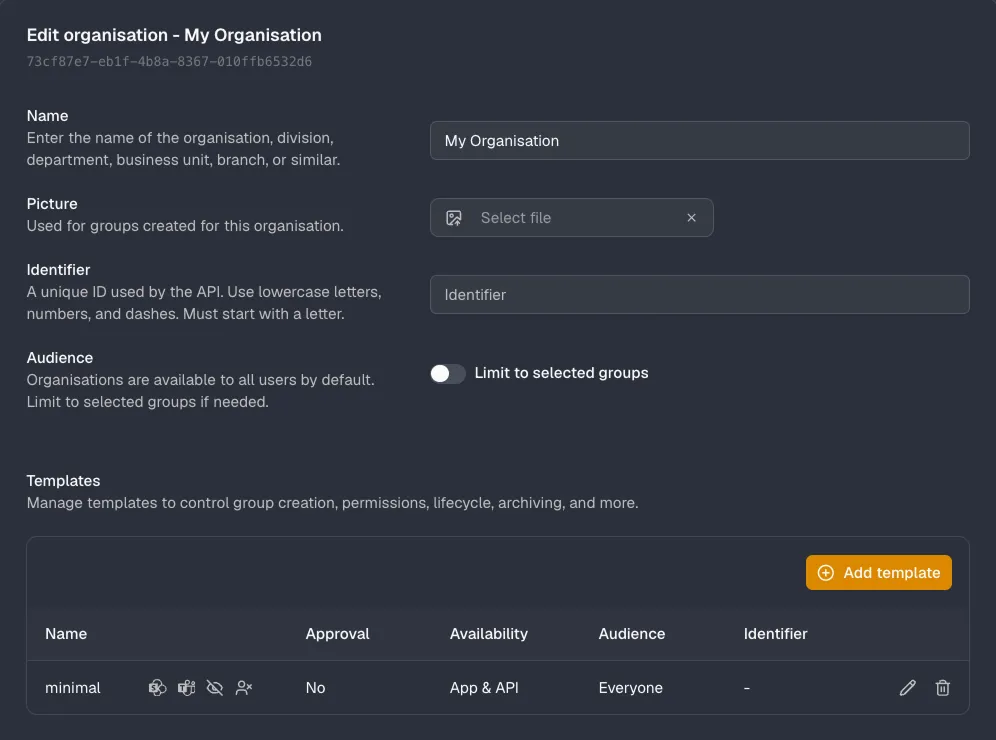
The template is now ready to use. New teams are created as follows:
- public (Public)
- without guest access
Test the template
Section titled “Test the template”Teams can be created either by Seamless admins directly in the Admin Center or by users through the Seamless app in Teams. Here we use the Admin Center.
-
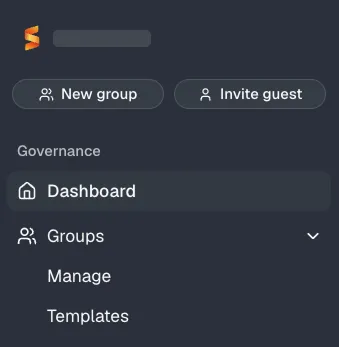
At the top left, below the tenant, click New group.
-
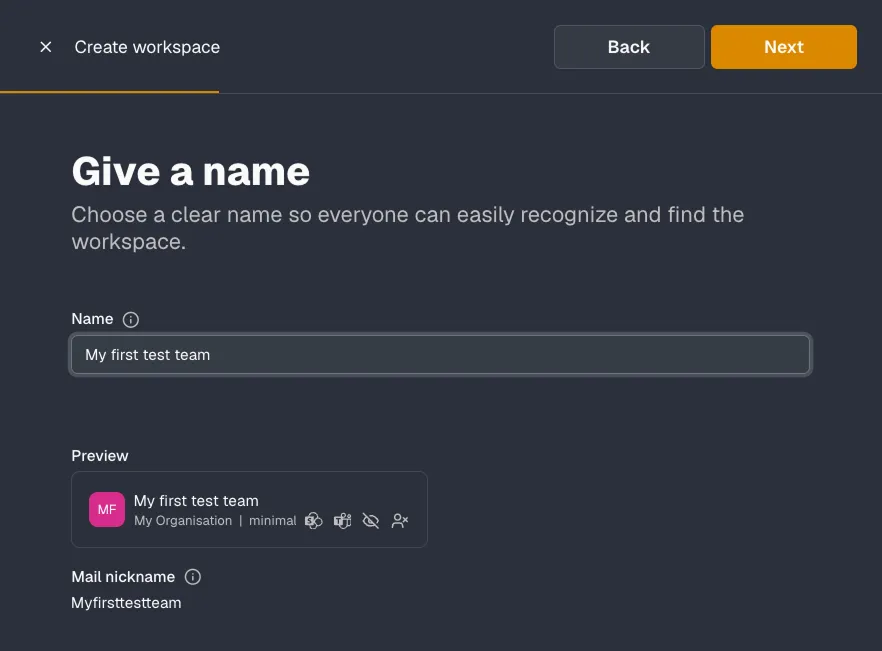
Give the workspace a name and click Next.
-
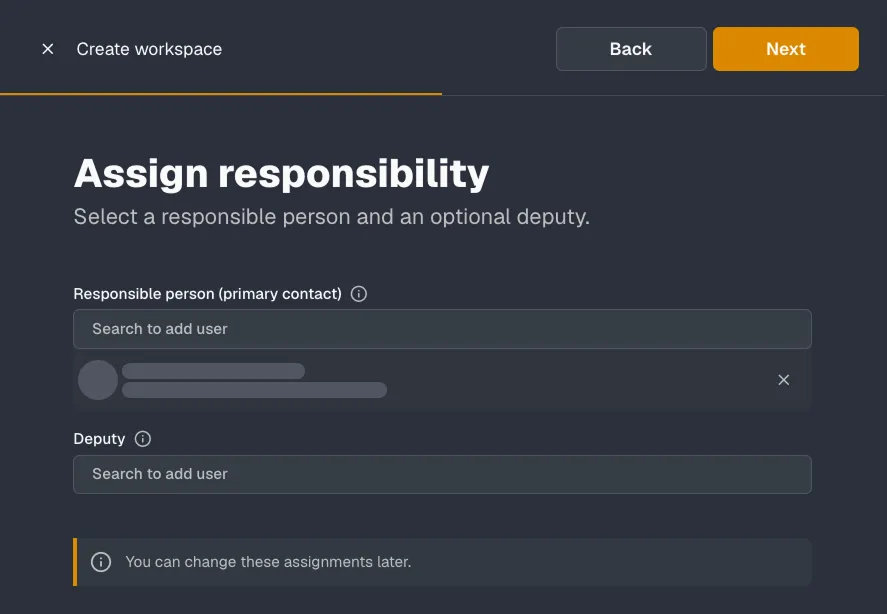
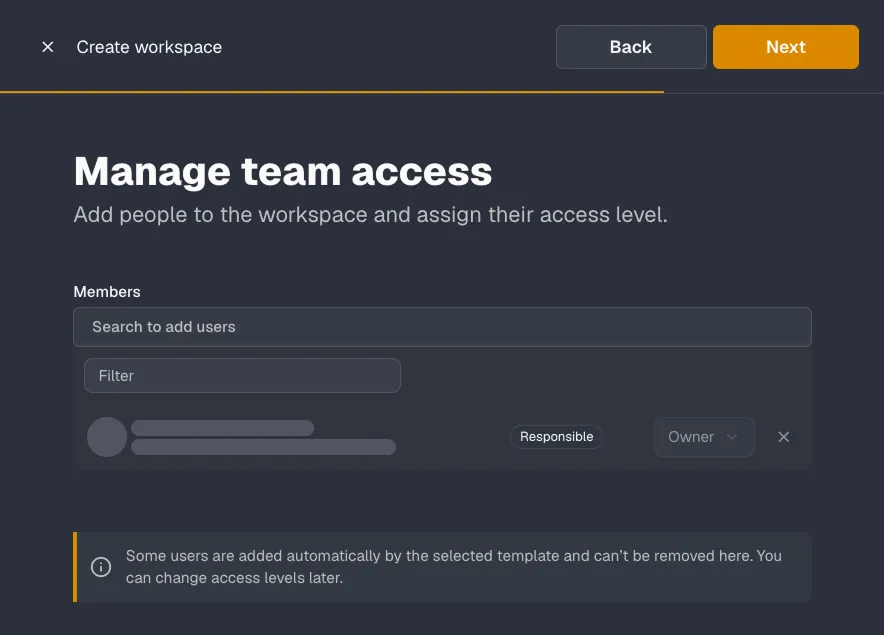
Enter yourself as the primary contact under Responsible person (primary contact) and click Next. This automatically makes you an owner of the workspace.
-
Add further members if needed and click Next.
-
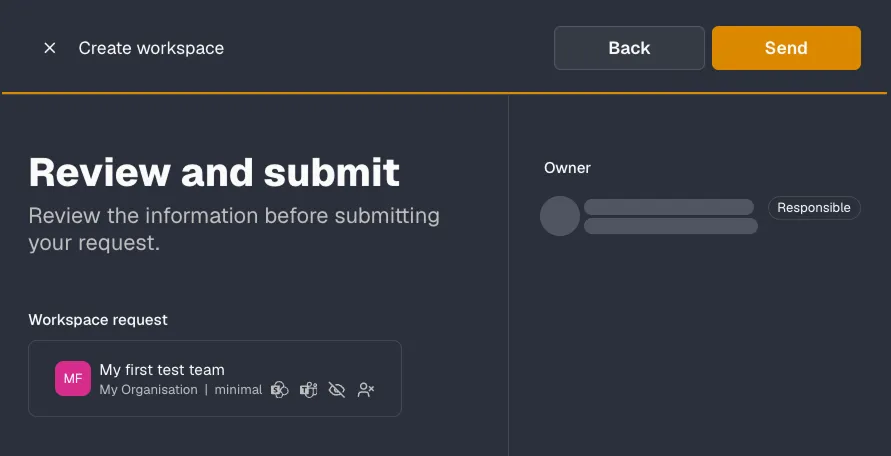
Review the information and click Send.
Check the workspace
Section titled “Check the workspace”Creation takes about one minute. Under Monitoring → Provisioning, you can follow the progress and see whether any errors occurred.
The new workspace then appears in the Admin Center under Groups → Manage. Alternatively, you can find it in the Seamless app in Teams.